A cloud kitchen has no tables and thin margins. This guide sets up a POS so each order, channel and cost is visible from day one.
1. Build the menu
Add categories, items, sizes and add-ons. Import from CSV if you have a sheet.
2. Channel price lists
Create lists for Zomato, Swiggy, own store and phone orders.
3. Tax and charges
Set tax per item category and packing or delivery charges with your CA’s guidance.
4. Order flow
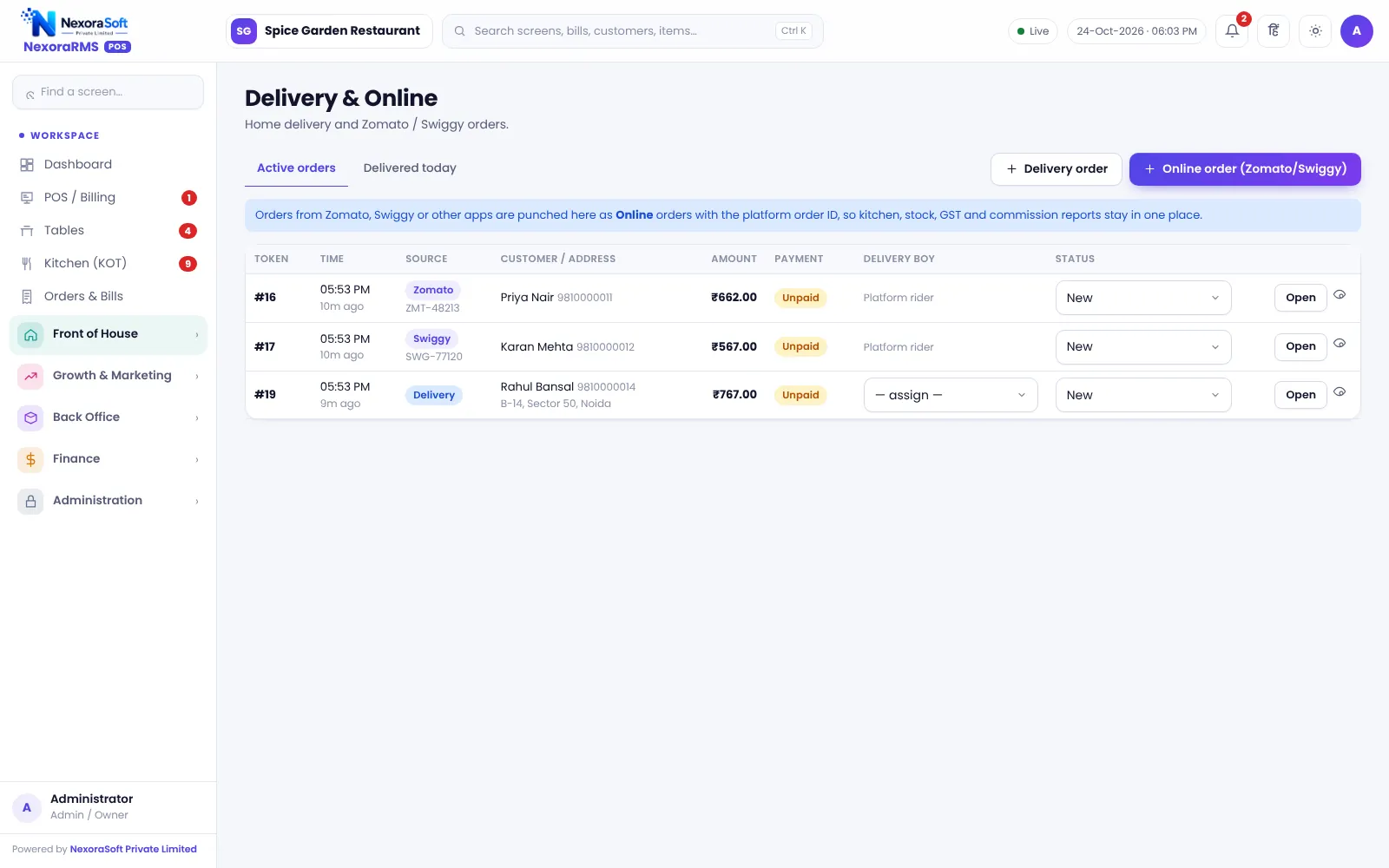
- Create the order in Online mode with platform and order ID
- Send KOT
- Mark ready, pack and hand over
- Reconcile payouts weekly
5. Kitchen
Use a kitchen display for peak hours and stations if you run several.
6. Food cost
Add raw materials and recipes. Check food cost % per dish and per channel.
7. Daily checks
- Z report
- Cancelled items
- Stock variance
- Channel sales
Limits
Aggregator orders are entered manually. See POS software for cloud kitchens.
Launch checklist
- Menu live with correct prices per channel
- Printers and kitchen display tested
- Staff trained on Online order entry
- Packing materials and charges set
- First week review of channel sales and cancellations
Common cloud kitchen mistakes
- Underpricing on aggregator menus
- Not tracking packaging cost
- No daily stock count for key items
- Ignoring cancelled and refunded orders
Related guides: Restaurant POS Software in India (complete guide)
Zomato & Swiggy Order Management SoftwarePOS Software for Cloud KitchensRecipe Costing and Food Cost PercentageManaging Zomato and Swiggy Orders
See NexoraRMS-POS in Action
Book a free live demo and see billing, KOT, tables, QR ordering and reports run on your own menu.
Book a Free Demo +91 98115 51004